Excel Add-in: Registering the Add-in
After the installation is completed, you must register the Excel Add-In before you can access Add-in mapping and import functions.
When you open an Excel spreadsheet after successfully installing the Excel Add-In, a prompt or message about registering the Excel Add-In does not automatically display. You must select the Register button to activate the dialog boxes that will lead you through the registration process.
- Open an Excel spreadsheet.
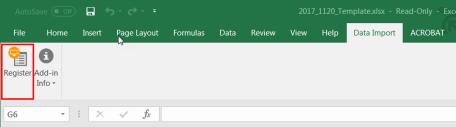
- Select the Data Import tab, and then select Register.
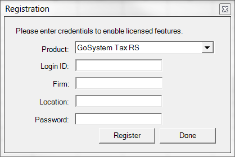
- The Registration dialog box displays. Select the tax applicable application from the Product drop-down list. Enter your Login ID, Firm, and Password, and select Register.
- After the registration is completed, the Data Import dialog box displays. Select OK.
- To register other licensed products, select the down arrow to open the Product drop-down list in the Registration dialog box, and select another product.
To register a product other than the one licensed, you must use the ID and Password credentials provided by that product.
- After all selected products are registered, select Done.
If the account associated with your Login ID and Password does not include a valid license to use the Data Import Add-in for the products selected, a warning message displays.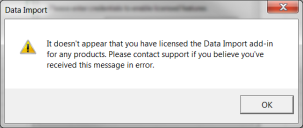
Select OK to close the dialog box.
Import/Export/excel_getting_started_5.htm/TY2021
Last Modified: 11/09/2020
Last System Build: 10/18/2022
©2021-2022 Thomson Reuters/Tax & Accounting.
