Carson Case Study: Reviewing the Return
The tax preparation process includes thorough review to ensure complete and accurate information on the return. System tools and features let you locate errors and verify data. You can view the complete return online and make corrections before printing.
The return must be fully computed after all information has been entered. Select Compute > Full Recompute.
- Review diagnostics and overrides (described in the next section).
- Review the Tax Forms.
- Review the supporting work papers.
- Review the return through print preview.
- Enter any corrections or changes before printing the return.
Diagnostics
Viewing Diagnostics
The following directions and windows guide you through the process of viewing diagnostics in the tax application.
- Select Compute > Full Recompute to recompute the return, if necessary.
- Click the Organizer or the Tax Forms tab on the Forms List Window.
- Select View > Diagnostics.
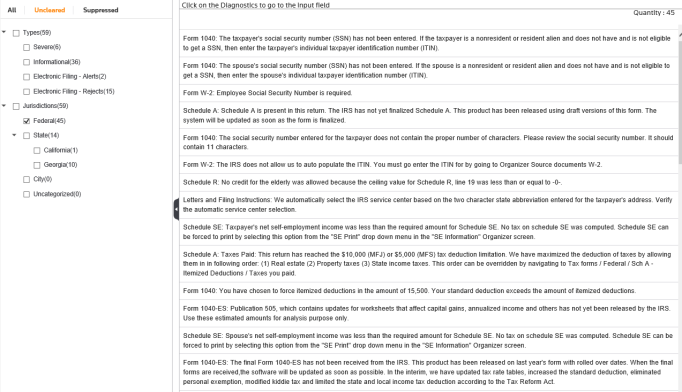
- Select the diagnostic description box or highlight the specific diagnostic and click the diagnostic to go to the input field.
The diagnostic types are:
- Severe: errors that have a negative impact on the computation of the return. These errors must be corrected and the return recomputed before the return will be correct.
- Informational: explanations and assumptions made during the compute process. These provide information and have no negative impact on your ability to properly compute the tax return. Review these diagnostics to be sure the proper assumptions were applied. If not, modify your input for the item and recompute the tax return.
- E-file: errors or omissions that affect the application’s ability to create an electronic data file for use in e-file. Each of these diagnostics must be corrected and the return recomputed for an electronic data file to be created. These errors prevent the return from being available for e-file.
- Complete or correct the data as needed on the Organizer.
- Repeat the steps to review the next diagnostic message for this return.
Preparers have the ability to “clear” or “suppress” diagnostics. However, all diagnostics will print. The “cleared” or “suppressed” diagnostics print with an asterisk “*” in front of the diagnostic. If you are printing diagnostics for a state, only that state’s diagnostics will print.
Suppressing Diagnostics
- Select View > Diagnostics.
- Navigate to the All tab.
- Place a check mark in the box next to the diagnostic you wish to suppress.
Overrides
When reviewing Tax Forms, look for any field that has a blue or red asterisk (*), which marks an override. You should have no overrides from your data entry if you have been entering data through Organizers.
Clearing Overrides
- Select View > Overrides.

- Follow the on-screen instructions to clear the override.
Deleting Overrides
- Click the Organizer field with the override.
- Right-click and select Clear Override.
Comparison
When the case study is completed, you can compare your entries with the master return that Thomson Reuters completed using the same data. To compare the Carson return you prepared to the master, select Case Study Comparison from the Help menu.
Differences between the amount in your return and the amount in the master return are noted in the Difference column. There should be no amounts in the Difference column if you entered the data correctly.
There should be no overrides in the return if all entries are made through the Organizer screens. If you have differences on the case study comparison screen, open the Master Carson case study and compare the Organizer screens to your screens.
Printing the Carson Return
You can print the Carson return in several ways.
Printing from Print Preview
While viewing the Preview Return version of the return:
- Select Print. Doing so allows you to print the completed tax form you are viewing.
- When the Print dialog box opens, make the selections you want.
- Select OK.
Selective Printing from Print Preview
- Select the form that you wish to print on the Forms List Window.
- Select Print.
- When the Print dialog box opens, select the current selection.
- Select OK. You will print the completed tax form that you selected.
Case Study Facts/carson_review.htm/TY2019
Last Modified: 02/14/2020
Last System Build: 06/17/2021
©2019-2020 Thomson Reuters/Tax & Accounting.
