Carson Case Study: Data Entry
Organizer Booklet
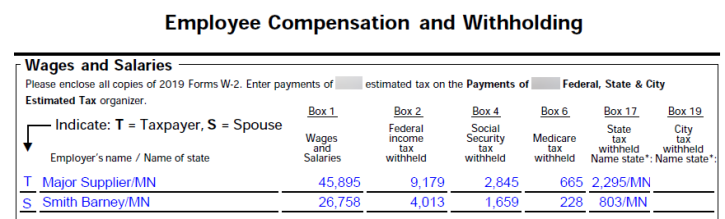
To begin, verify or enter all the data from the Organizer booklet. At the bottom of each Organizer page, the navigation to that data entry screen is shown. Start by clicking the Organizer tab and selecting the applicable Organizer screen.
Source Documents
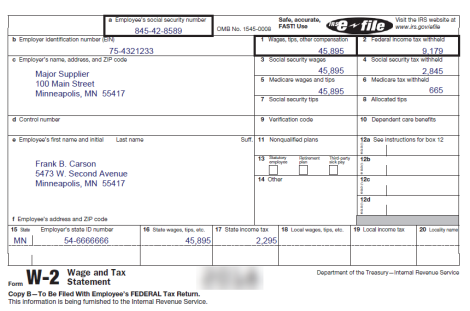
The source documents detail the items and information that must be entered in the return. Use these documents to enter the data in the Organizer.
Entering Information
Basic Return Information
To begin, verify or enter the data from the Organizer booklet that relates to General Information. Start by clicking the Organizer tab and selecting the applicable Organizer screen.
- Select General Information > Basic Return Information > Taxpayer Information.
- Verify all the taxpayer information listed in the Organizer booklet, and add or change any applicable information.
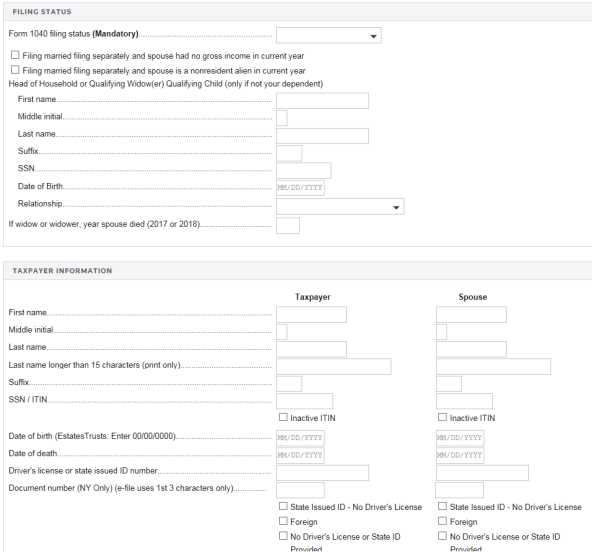
- Continue entering all data from each Organizer booklet page using the source documents until you have completed the date entry for the return. All of the information in this section relates to the Organizer booklet and source documents.
Filing Status is mandatory and must be entered.
- Enter or verify that all the dependent information shown here appears in the tax application. Both dependents lived with their parents for the full 12 months. No entry is required, as 12 months is the default.
Employer Information
Since Marilyn did not work for Kelly Services in 2019, the wage information should be deleted.
- Click Kelly Services on the Forms List window.
- Press the Delete key on the keyboard.
- Click OK.
Since Marilyn changed employers in the current tax year, you must add a new employer to the return.
- From the Employer Name list, select Add new Employer Name.
- Enter Smith Barney in the Add new Employer Name dialog box.
- Select the Spouse option.
- Enter Marilyn's wage information.
Wage Income
- Select Organizer > Income > Wages and Salaries > Wage Input.
- Select the employer Major Supplier.
- On the facts that you printed out, find Frank Carson's gross wages from Major Supplier. Type that amount.
- Enter the federal tax withheld.
- Enter the amount of wages subject to Social Security tax.
- Enter the Social Security tax withheld.
- Enter the amount of wages subject to Medicare tax.
- Enter the amount of Medicare tax withheld.
- Enter the state zip or postal code in the 2-digit field and then type the amount of state tax withheld.
- Select Kelly Services.
- Since Marilyn did not work for Kelly Services in the tax year, press the Delete key on the keyboard to delete Kelly Services from the return. Click OK to confirm the deletion.
Make sure that Compute is off. To do so, select Compute > Auto Compute to turn the Compute option on or off.
Interest and Dividend Information
Include the couple’s interest income in the return.
- Select Organizer > Income > Interest Income > 1099-INT.
- Select Norwest Bank and then enter the interest income not included in Box 3.
- Select American Savings, and then enter the interest income not included in Box 3.
- Remove First Interstate from the Organizer screen. To do so, select First Interstate. Then select Delete.
Include the couple's dividend income in the return.
- Select Organizer > Income > Dividend Income > 1099-DIV > New Dimension.
- Enter the amount for Ordinary Dividends in the Ordinary Dividend field.
- Enter the amount for Capital Gain Distributions in the Total capital gain distribution field.
- From the Dividend Input list, select Add new 1099-DIV payer.
- Enter Hyte Fund in the Add new 1099-DIV payer dialog box.
- Select OK.
- Enter the amounts for Ordinary Dividends and Total capital gain distributions as you did in steps 2 and 3.
The Carsons entered into a new investment in the current tax year called the Hyte Fund. You must add this to the return.
Dividend income carries to Schedule B and capital gains information carries to Schedule D.
Capital Gains and Losses
Capital gains and losses should be entered in the Gains and Losses folder. The gains and losses that relate to the Consolidated 1099 should be entered in that screen.
- Select Organizer > Gains and Losses > Capital Gains and Losses > Add new Description of Property.
- Enter New Dimensions Fund in the Add new Description of Property dialog box.
- Enter the date acquired and date sold in the Date acquired and Date sold fields.
- In Computation of Gain(Loss), enter the sale proceeds in the Proceeds (sales price) field.
- In Computation of Gain(Loss), enter the cost in the Cost or other basis field.
Each activity has a folder for entering Gains and Losses that relate to that activity. For gains and losses that do not relate to a particular activity, scroll down and enter them in the main Gains and Losses folder.
Schedule C Business Information
In 2019, Marilyn Carson started a small business, which is reported on Schedule C.
- Select Organizer > Income > Business Income > Add new Business Name.
- In the Add new Business Name dialog box, type Craftiques (the name of Marilyn's new business), and then click OK.
- Enter 001 in the Activity number field.
- Select the Spouse option to indicate that this Schedule C belongs to Marilyn.
- Verify that the Accounting Method is Accrual. If not, change it to Accrual.
- Verify that the Inventory Valuation method is Cost.
- Verify that under Income Type, the Taxpayer materially participates option is selected.
- Select the option to indicate that Marilyn's business was acquired during the year of the return.
Schedule C Business Income and Expenses
Enter the business information and income and expenses for Marilyn’s new company, including the depreciable asset.
- Include Marilyn's business expenses in the tax return.
- Select the Income/Expense tab in the Craftique Organizer.
- Enter the income and expenses listed in the facts that you printed out.
- Enter the depreciation for Marilyn's computer in the Business Income section of the Organizer.
- Select Depreciation and Amortization > Asset Detail > Add New Asset.
- Enter the depreciation information from the facts that you printed.
Mortgage Interest and Real Estate Taxes
Mortgage interest and real estate taxes should be entered in the 1098 folder.
- Select Organizer > Itemized Deductions.
- Select Form 1098 - Mortgage Interest.
- Select Add New Form 1098 - Mortgage Interest.
- Enter the mortgage interest and tax amounts.
Charitable Contributions
Charitable contributions should be entered under Contributions.
- Select Organizer > Itemized Deductions.
- Select Contributions Current Year, and enter the cash contributions.
- Select Miscellaneous-2%, and enter the amount of the tax preparation fees.
Case Study Facts/carson_data_entry.htm/TY2019
Last Modified: 08/13/2020
Last System Build: 06/17/2021
©2019-2020 Thomson Reuters/Tax & Accounting.
